
Summary
Many marketing teams start by collecting prompts. That feels useful until the folder grows messy, outdated, and disconnected from real work. A pile of prompts cannot tell anyone what is approved, what still works, or who owns it.
The distinction matters. A prompt library stores instructions. A capability repository stores the operating system around those instructions.
A strong repository helps the team answer practical questions every day. It shows which artificial intelligence (AI) workflows are approved, which prompts are reliable, and which source materials are safe. It also shows who owns each workflow, what requires human review, when each workflow was last tested, and where people learn the process.
I have built versions of this system for real teams. The structure is not complicated, and the discipline comes from setting it up cleanly, connecting the records, and maintaining it as real work changes.
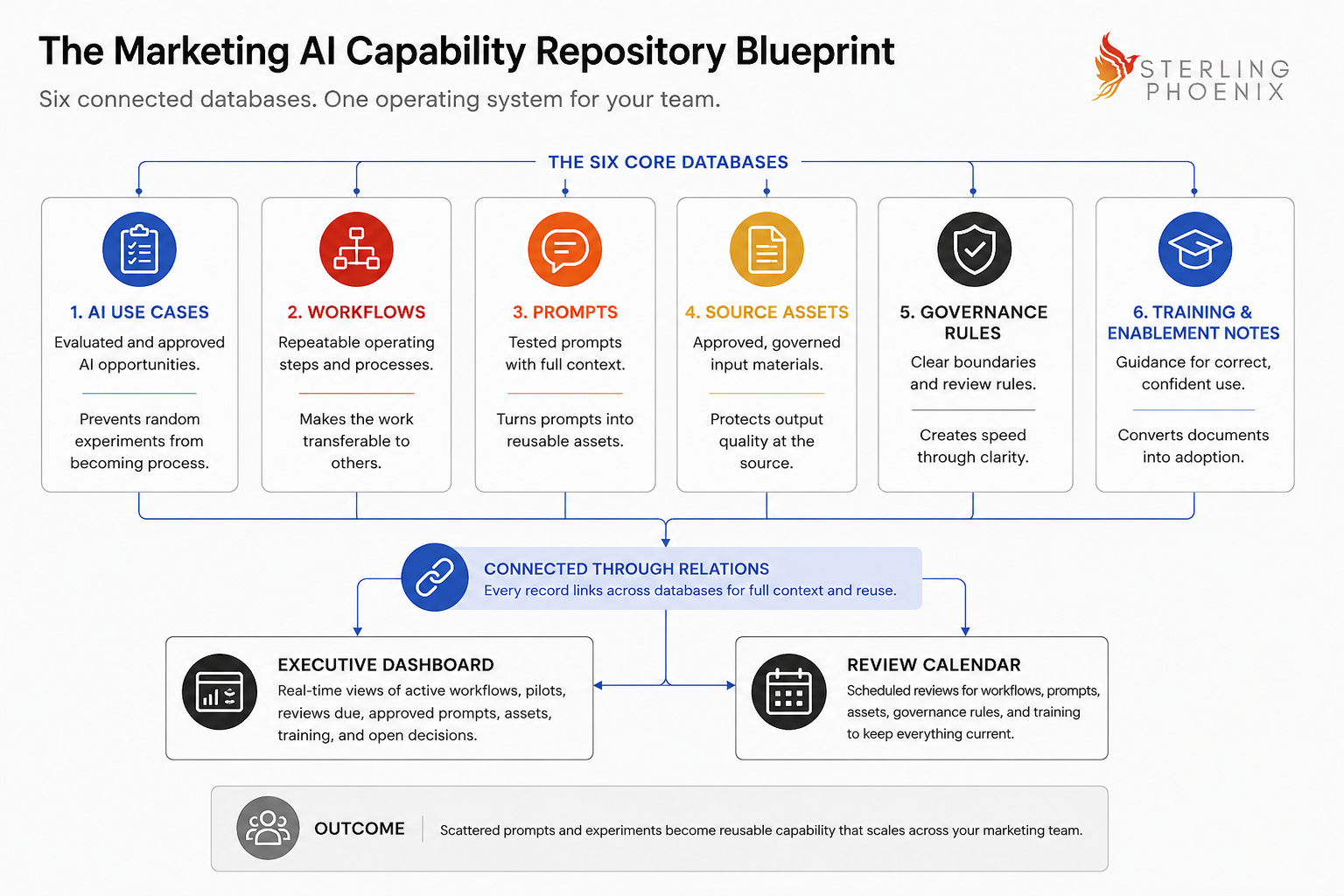
What the Repository Should Accomplish
The repository gives the marketing team one trusted place to manage artificial intelligence (AI) capability. It should behave like infrastructure rather than administration.
The system should do eight things by design.
- It makes approved AI workflows visible to the whole team.
- It keeps prompts attached to real business processes.
- It clarifies which source material and data are approved.
- It shows ownership and review requirements for each workflow.
- It stores examples of strong outputs.
- It supports training and onboarding.
- It reduces duplicated work across people.
- It runs a review cycle so assets stay current.
A repository like this also becomes a portfolio asset. It shows that AI capability can be organized, governed, reused, and improved instead of trapped inside private chats.
Build This in Notion First
Start with one Notion page. Name it Marketing AI Capability Repository.
At the top of the page, add a short description. The description should read: this workspace stores approved AI use cases, workflows, prompts, source assets, training notes, governance rules, and review cycles for the marketing team.
Then add a short instruction block. The instruction should read: use this repository before creating a new AI workflow, prompt, or automation, and check whether an approved workflow already exists, whether the source material is approved, and whether human review is required.
That opening block matters because people need to know what the page is for before they use it.
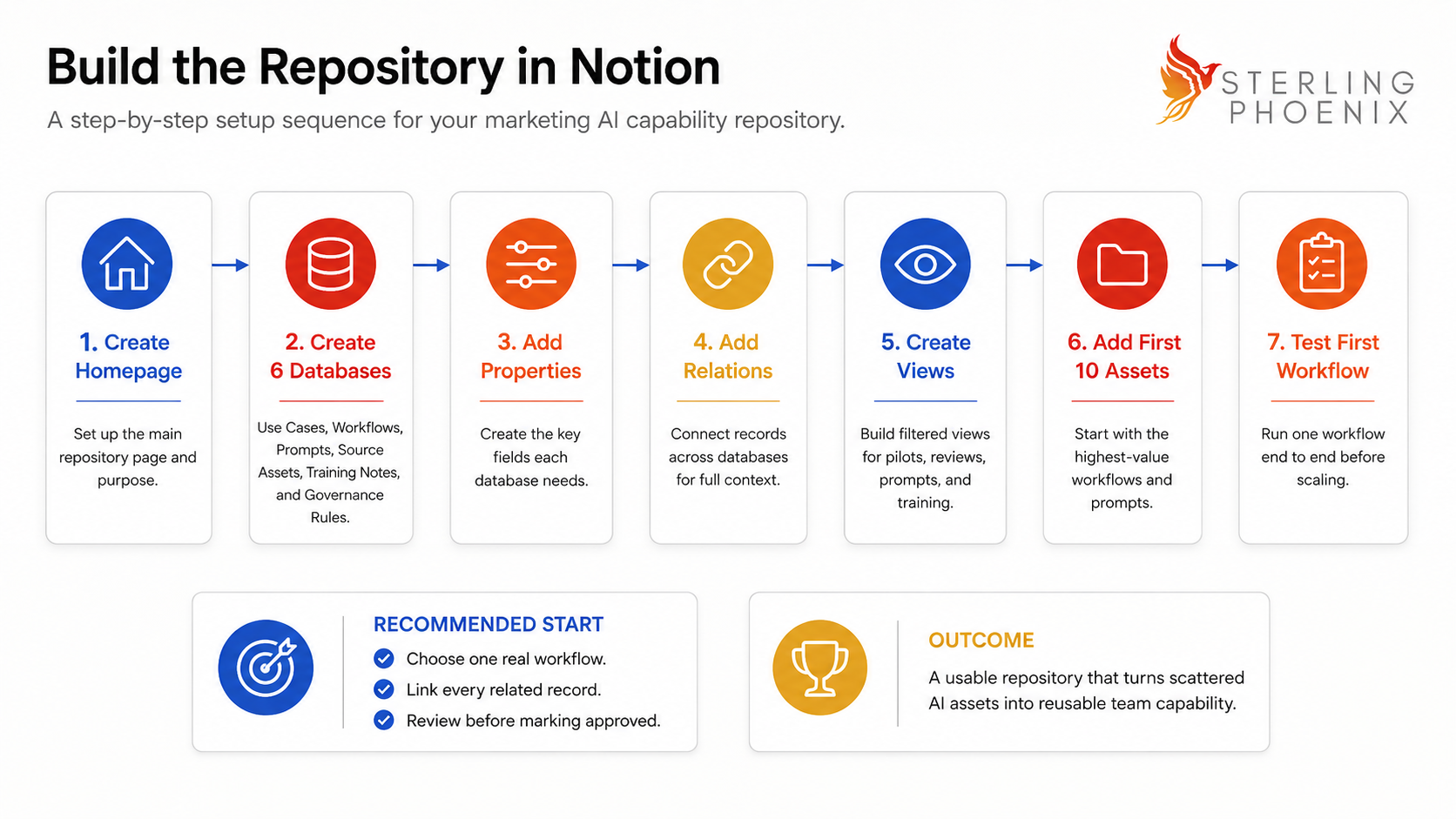
Create the Six Databases
Create six full-page Notion databases first. Avoid starting with random pages or inline notes.
Create these databases.
- The first database is AI Use Cases.
- The second database is Workflows.
- The third database is Prompts.
- The fourth database is Source Assets.
- The fifth database is Training Notes.
- The sixth database is Governance Rules.
Full-page databases are easier to manage, link, filter, and reuse across dashboards. You can still display filtered views of each database on the homepage later.
Notion relations connect records across databases. Rollups can pull information from those related records. That connection is what turns six separate lists into one operating system.
A short plan note matters here. Notion’s dedicated Dashboard view is available on Business and Enterprise plans, and it has widget limits. Teams on Free or Plus plans can still build a strong homepage with linked database views arranged in sections.
Add the Core Properties Before You Add Content
Build the database properties before migrating old prompts or documents. This step prevents the repository from becoming another pile of notes.
Use this property map as your starting point.
| Property | Notion property type |
|---|---|
| AI Use Cases | |
| Use Case Name | Title |
| Marketing Function | Select |
| Status | Select |
| Owner | Person |
| Business Impact Score | Number |
| Workflow Repeatability Score | Number |
| Data Readiness Score | Number |
| Risk Manageability Score | Number |
| Human Review Complexity Score | Number |
| Adoption Readiness Score | Number |
| Decision Lane | Select |
| Related Workflow | Relation to Workflows |
| Review Date | Date |
| Workflows | |
| Workflow Name | Title |
| Related Use Case | Relation to AI Use Cases |
| Related Prompts | Relation to Prompts |
| Source Assets | Relation to Source Assets |
| Governance Rules | Relation to Governance Rules |
| Training Notes | Relation to Training Notes |
| Owner | Person |
| Status | Select |
| Next Review Date | Date |
| Prompts | |
| Prompt Name | Title |
| Related Workflow | Relation to Workflows |
| Tool or Model | Select |
| Status | Select |
| Owner | Person |
| Last Tested Date | Date |
| Review Date | Date |
| Source Assets | |
| Asset Name | Title |
| Asset Type | Select |
| Sensitivity Level | Select |
| Owner | Person |
| Related Workflows | Relation to Workflows |
| Review Date | Date |
| Training Notes | |
| Training Topic | Title |
| Audience | Select |
| Skill Level | Select |
| Related Workflow | Relation to Workflows |
| Support Contact | Person |
| Last Updated Date | Date |
| Governance Rules | |
| Rule Name | Title |
| Category | Select |
| Applies To | Multi-select |
| Human Review Requirement | Select |
| Escalation Owner | Person |
| Related Workflows | Relation to Workflows |
| Next Review Date | Date |
This table is only the starting structure. Add more properties later when real use reveals a gap.
Database One: AI Use Cases
Create the AI Use Cases database first. This database captures proposed, approved, paused, and retired AI opportunities. Its job is to prevent random experiments from becoming unofficial process.
Add these properties.
- Use Case Name uses the title field.
- Marketing Function uses a select field with options such as Content, Demand Generation, Campaign Operations, Sales Enablement, Reporting, Research, and Leadership Communication.
- Business Problem uses a text field.
- Current Manual Process uses a text field.
- Proposed AI-Supported Workflow uses a text field.
- Business Impact Score uses a number field.
- Workflow Repeatability Score uses a number field.
- Data Readiness Score uses a number field.
- Risk Manageability Score uses a number field.
- Human Review Complexity Score uses a number field.
- Adoption Readiness Score uses a number field.
- Decision Lane uses a select field.
- Owner uses a person field.
- Status uses a select field.
- Related Workflow uses a relation to the Workflows database.
- Review Date uses a date field.
Set the Status options as Proposed, Scoring, Pilot Now, Prepare First, Govern Before Building, Active, Paused, and Retired.
Set the Decision Lane options as Pilot Now, Prepare First, Govern Before Building, and Do Not Automate Yet.
Create these views.
- Create an All Use Cases view.
- Create a Needs Scoring view.
- Create a Pilot Queue view.
- Create a Prepare First view.
- Create a Govern Before Building view.
- Create an Active Use Cases view.
- Create a Retired Use Cases view.
Create one template inside this database called New AI Use Case. The template body should prompt the author for the business problem, the current manual process, and the proposed AI-supported workflow. It should also prompt for the required data or source materials, the risks or constraints, the human review requirement, the success measure, and the owner.
Database Two: Workflows
Create the Workflows database next. This database holds the repeatable processes, and it forms the core of the repository. A documented workflow should transfer to another person without a private explanation.
Add these properties.
- Workflow Name uses the title field.
- Related Use Case uses a relation to AI Use Cases.
- Trigger uses a text field.
- Intended User uses a select or multi-select field.
- Required Inputs uses a text field.
- Tools Used uses a multi-select field.
- AI Step uses a text field.
- Human Review Point uses a text field.
- Output Format uses a select field.
- Storage Location uses a URL or text field.
- Owner uses a person field.
- Backup Owner uses a person field.
- Related Prompts uses a relation to Prompts.
- Source Assets uses a relation to Source Assets.
- Governance Rules uses a relation to Governance Rules.
- Training Notes uses a relation to Training Notes.
- Known Failure Points uses a text field.
- Quality Checklist uses a text field.
- Version uses a text field.
- Last Tested Date uses a date field.
- Next Review Date uses a date field.
- Status uses a select field.
Create these views.
- Create an Active Workflows view.
- Create a Review Due This Month view.
- Create a Needs Owner view.
- Create a High-Risk Workflows view.
- Create a By Marketing Function view.
- Create a By Intended User view.
- Create a Retired Workflows view.
Create one template called New Workflow. The template body should prompt for the trigger, the inputs, the tools used, and the AI step. It should also prompt for the human review point, the output, the storage location, the known failure points, the quality checklist, and the next review date.
Useful workflow types include several common reports and generators. They include a weekly campaign performance summary, a go-to-market (GTM) signal intelligence report, and a sales brief generator. They also include a content repurposing workflow, a webinar follow-up workflow, and a campaign brief generator.
Database Three: Prompts
Create the Prompts database third. This database stores prompts as reusable assets with full context. A prompt earns approval only when it links to a workflow, an owner, required inputs, and a review standard.
Add these properties.
- Prompt Name uses the title field.
- Related Workflow uses a relation to Workflows.
- Use Case uses a relation to AI Use Cases.
- Tool or Model uses a select field.
- Intended User uses a select field.
- Required Inputs uses a text field.
- Prompt Text uses a text field or a page body section.
- Output Format uses a select field.
- Example Output uses a text field or a page body section.
- Quality Checklist uses a text field.
- Claims or Data Limitations uses a text field.
- Known Failure Points uses a text field.
- Owner uses a person field.
- Status uses a select field.
- Last Tested Date uses a date field.
- Review Date uses a date field.
Set the Status options as Draft, Testing, Approved, Needs Revision, and Retired.
Create these views.
- Create an Approved Prompts view.
- Create a Needs Testing view.
- Create a By Workflow view.
- Create a By Tool or Model view.
- Create a Needs Review view.
- Create a Retired Prompts view.
Create one template called New Prompt Asset. The template body should prompt for the prompt purpose, the required inputs, and the prompt text. It should also prompt for the expected output format, an example output, a review checklist, the known limitations, and the last tested date.
Database Four: Source Assets
Create the Source Assets database fourth. This database controls the materials that AI workflows may use. Source control protects accuracy, privacy, and trust.
Add these properties.
- Asset Name uses the title field.
- Asset Type uses a select field.
- Location uses a URL field.
- Owner uses a person field.
- Approved Use uses a text field.
- Sensitivity Level uses a select field.
- Source of Truth uses a URL or text field.
- Update Cadence uses a select field.
- Related Workflows uses a relation to Workflows.
- Related Prompts uses a relation to Prompts.
- Expiration Date uses a date field.
- Review Date uses a date field.
Set the Asset Type options as Campaign Brief, Brand Guideline, Product Page, Customer Research, Webinar Transcript, Case Study, Reporting Export, Sales Notes, Standard Operating Procedure, and Training Document.
Set the Sensitivity Level options as Public, Internal, Confidential, and Restricted.
Create these views.
- Create an Approved Assets view.
- Create a High-Sensitivity Assets view.
- Create a Review Due view.
- Create a By Asset Type view.
- Create an Expired or Outdated view.
- Create a By Related Workflow view.
Create one template called New Source Asset. The template body should prompt for the asset description, the approved use, and the prohibited use. It should also prompt for the source of truth, the update cadence, and the sensitivity notes.
Database Five: Training Notes
Create the Training Notes database fifth. This database helps people use the system correctly. Training notes connect the repository to adoption, and they should reduce hesitation during real work.
Add these properties.
- Training Topic uses the title field.
- Audience uses a select field.
- Skill Level uses a select field.
- Related Workflow uses a relation to Workflows.
- Related Prompt uses a relation to Prompts.
- Quick-Start Instructions uses a text field.
- Walkthrough Notes uses a text field or a page body section.
- Example Input uses a text field.
- Example Output uses a text field.
- Common Mistakes uses a text field.
- Support Contact uses a person field.
- Last Updated Date uses a date field.
Set the Audience options as Content Users, Demand Generation Users, Campaign Operations Users, Sales Enablement Users, Managers, and Reviewers.
Set the Skill Level options as Beginner, Intermediate, and Advanced.
Create these views.
- Create a Quick Starts view.
- Create a New User Path view.
- Create a Manager Training view.
- Create a Reviewer Training view.
- Create a By Workflow view.
- Create a Recently Updated view.
Create one template called New Training Note. The template body should explain when to use the training and what the user needs before starting. It should also list the steps in order, describe what good output looks like, show common mistakes, and name the support contact.
Database Six: Governance Rules
Create the Governance Rules database sixth. This database stores practical operating rules as records rather than a buried document. Storing governance in a database lets each rule connect to the workflows it governs.
Add these properties.
- Rule Name uses the title field.
- Rule Description uses a text field.
- Category uses a select field.
- Applies To uses a multi-select field.
- Approved Tools uses a multi-select field.
- Restricted Tools uses a multi-select field.
- Approved Data Categories uses a multi-select field.
- Prohibited Data Categories uses a multi-select field.
- Human Review Requirement uses a select field.
- Escalation Owner uses a person field.
- Reason for Rule uses a text field.
- Related Workflows uses a relation to Workflows.
- Last Reviewed Date uses a date field.
- Next Review Date uses a date field.
Set the Category options as Data Handling, Customer-Facing Content, Executive Reporting, Sales Recommendations, Public Publishing, Sensitive Internal Communication, Automated Workflow Actions, and Tool Access and Permissions.
Set the Human Review Requirement options as User Review, Owner Review, Source Verification, Specialist Review, Leadership Approval, and Not Approved for Use.
Create these views.
- Create an Active Rules view.
- Create a Rules by Risk Area view.
- Create a Rules Due for Review view.
- Create an Escalation Required view.
- Create a Rules by Workflow view.
Create one template called New Governance Rule. The template body should state the rule in plain language and explain the reason it exists. It should also list what it applies to, state the human review requirement, name the escalation path, and show what is allowed and what is not allowed.
Connect the Databases With Relations
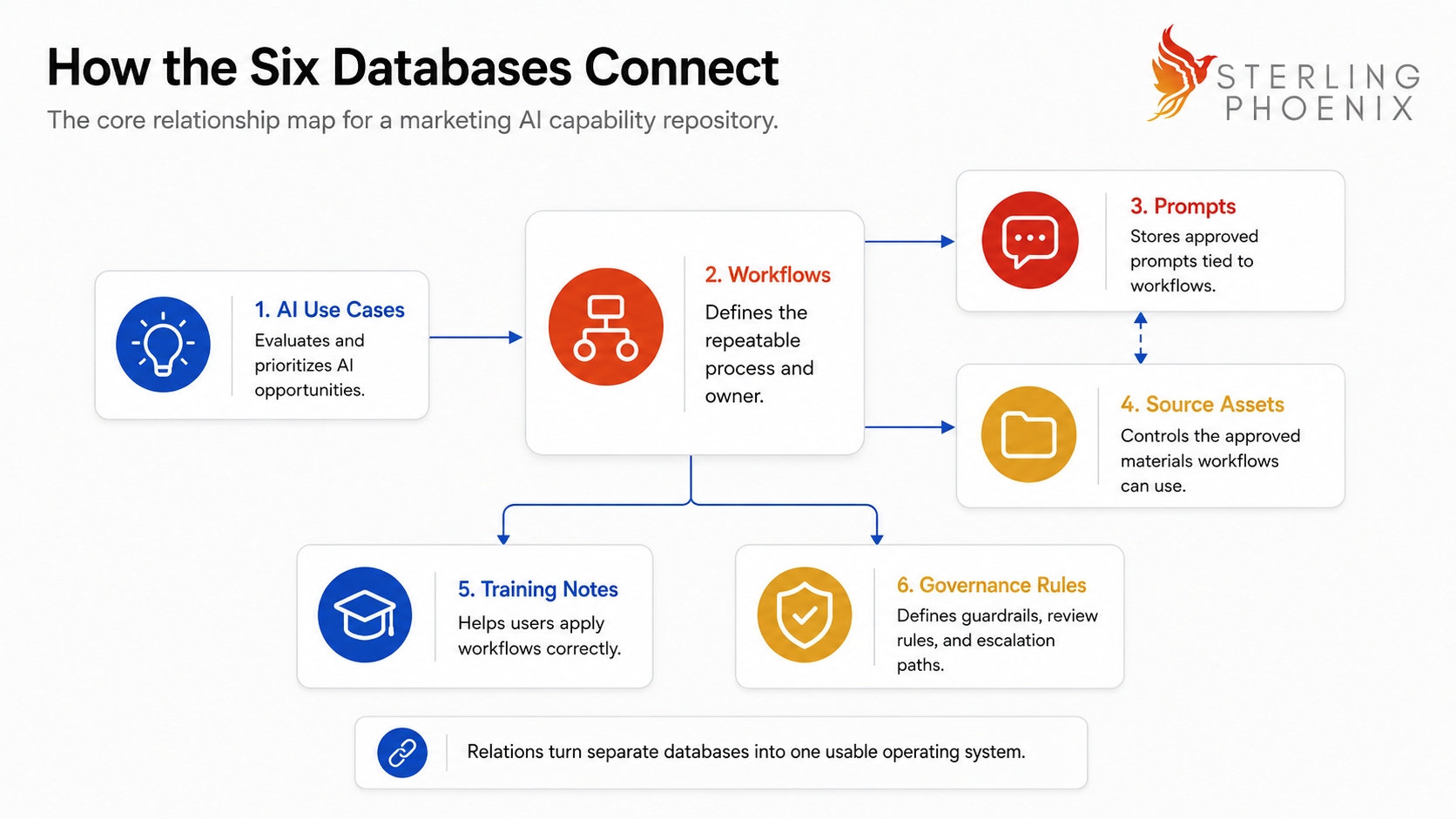
After the six databases exist, connect them. The relations are what make the repository useful.
Use this relationship structure.
- AI Use Cases connect to Workflows.
- Workflows connect to Prompts.
- Workflows connect to Source Assets.
- Workflows connect to Training Notes.
- Workflows connect to Governance Rules.
- Prompts connect to Source Assets when specific approved materials matter.
- Governance Rules connect to every workflow they control.
This step is not optional. A prompt becomes reliable once it links to a workflow. A workflow earns trust once it links to its source assets. A governance rule gets followed once it links to the workflows it controls.
Create the Executive Dashboard
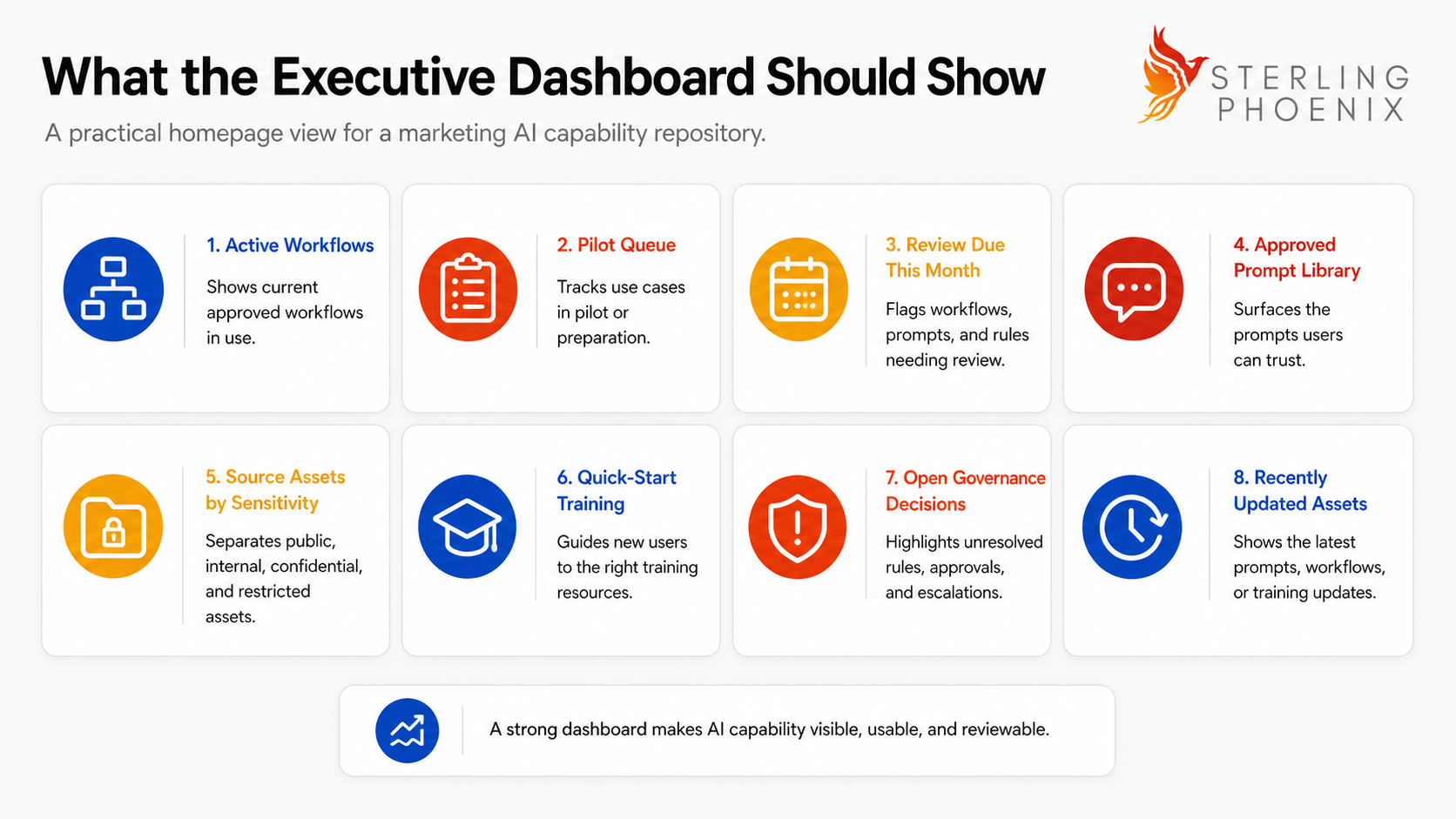
Return to the main homepage. This page should act as the executive dashboard, and it should use linked database views from the six databases.
Add these dashboard sections.
- Add an Active Workflows section.
- Add a Pilot Queue section.
- Add a Review Due This Month section.
- Add an Approved Prompt Library section.
- Add a Source Assets by Sensitivity section.
- Add a Quick-Start Training section.
- Add an Open Governance Decisions section.
- Add a Recently Updated Assets section.
- Add a Retired Workflows and Prompts section.
The dashboard should answer seven questions without requiring people to open every database.
- It shows which AI workflows are active.
- It shows which use cases are in pilot.
- It shows which workflows need review.
- It shows which prompts are approved.
- It shows which assets are safe to use.
- It shows which training resources people should start with.
- It shows which governance decisions are open.
Keep the first version simple. A useful dashboard with five filtered views beats a complex dashboard that nobody understands.
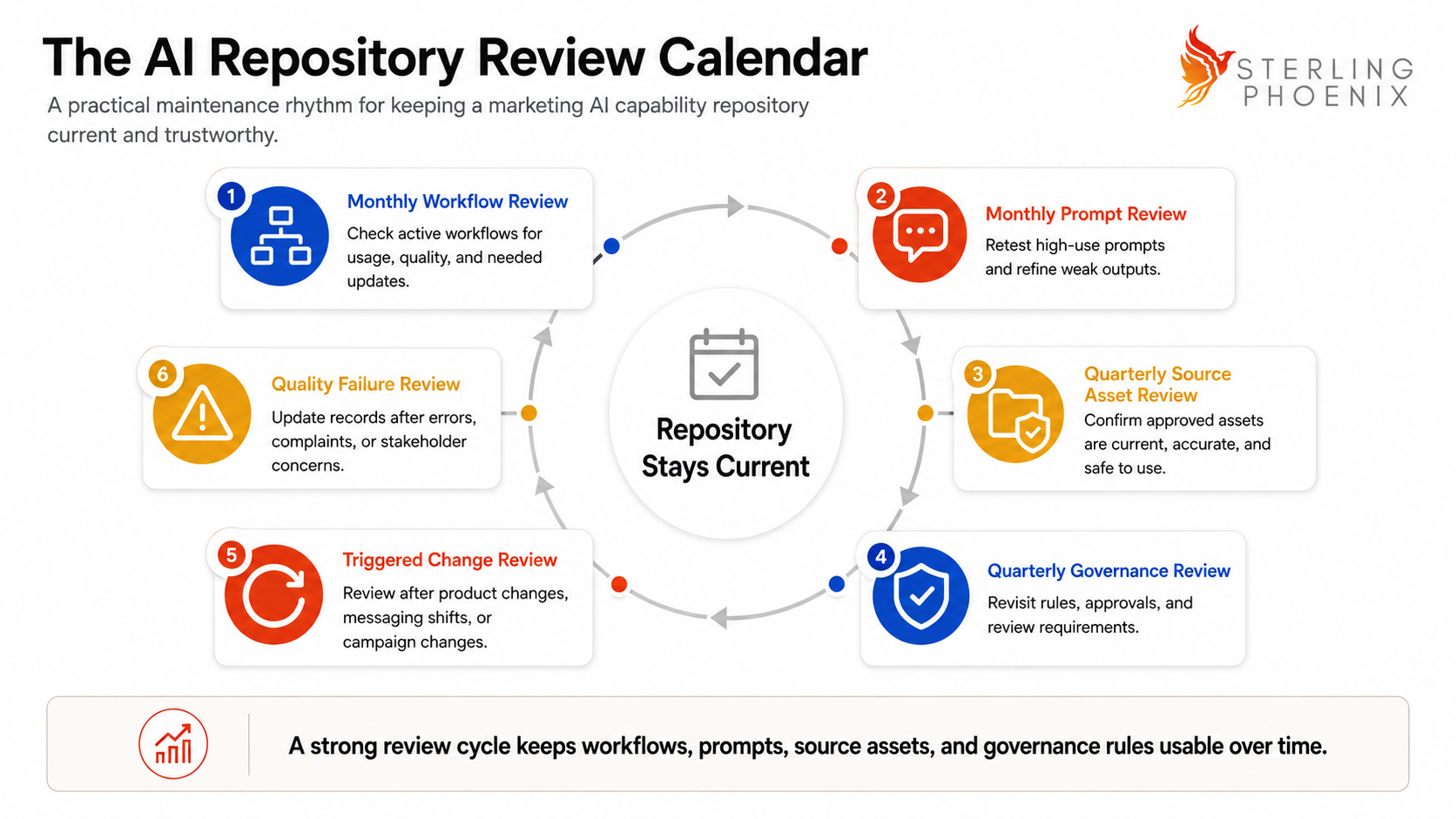
Create the Review Calendar
Create one calendar view called AI Repository Review Calendar. You can build this as a linked view that pulls review dates from the six databases. You can also create a separate Review Calendar database if your team wants one central review queue.
A practical review cycle looks like this.
- Active workflows get a monthly review.
- High-use prompts get a monthly review.
- Source assets get a quarterly review.
- Governance rules get a quarterly review.
- Major campaign, product, or messaging changes trigger a review.
- Quality failures or stakeholder complaints trigger a review.
- Outdated prompts and workflows get retired.
Use these review questions.
- Ask whether the workflow is still used.
- Ask whether the prompt still produces strong output.
- Ask whether the source assets are current.
- Ask whether the business process has changed.
- Ask whether the review rules are still appropriate.
- Ask whether the training note needs an update.
- Ask whether the asset should stay active, change, or retire.
The review calendar is what keeps the repository from decaying.
Build the First Workflow Asset
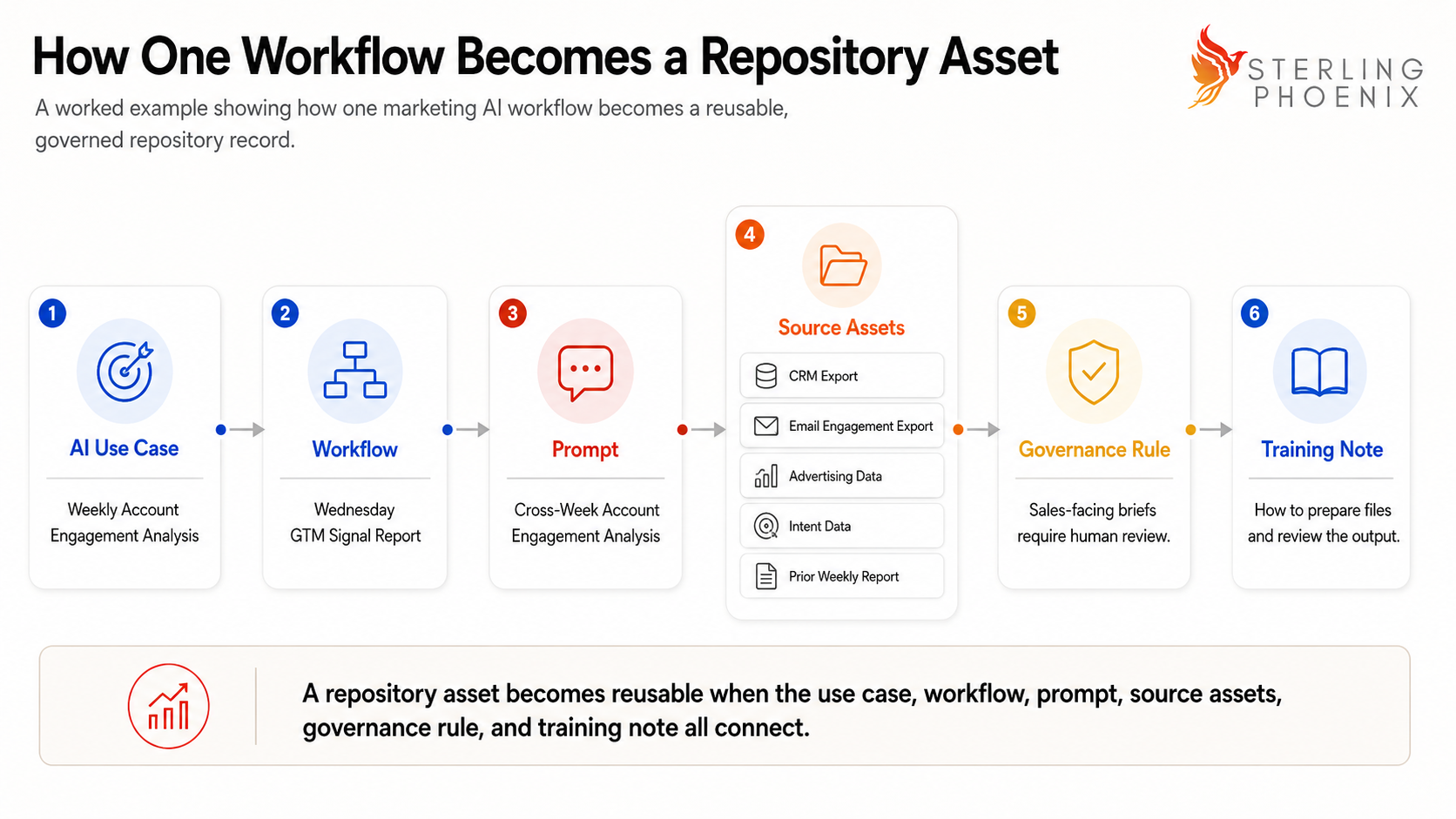
Start with one real workflow. Avoid trying to migrate everything first. Use a Weekly GTM Signal Intelligence Workflow as the first build.
This is how I would build it.
- Create an AI Use Case record called Weekly Account Engagement Analysis.
- Fill in the business problem, the current manual process, and the proposed AI-supported workflow.
- Score the use case across the six scoring categories.
- Assign the decision lane as Pilot Now or Prepare First.
- Create a Workflow record called Wednesday GTM Signal Report.
- Link the Workflow record to the AI Use Case record.
- Define the trigger as the weekly data exports added every Wednesday.
- List the required inputs, including this week’s engagement exports and prior weekly reports.
- Create a Prompt record called Cross-Week Account Engagement Analysis.
- Paste the approved analysis prompt into the Prompt Text field.
- Link the Prompt record to the Workflow record.
- Create Source Asset records for the CRM export, the email engagement export, the advertising export, the intent data, and the prior weekly report.
- Link each Source Asset record to the Workflow record.
- Create a Governance Rule that requires human review of sales-facing briefs before handoff.
- Link that Governance Rule to the Workflow record.
- Create a Training Note that explains how to prepare files, run the workflow, review outputs, and save final reports.
- Link the Training Note to the Workflow record.
- Run the workflow once with realistic or sanitized data.
- Update the known failure points based on what happened.
- Mark the workflow active only after the first reviewed output passes the quality checklist.
This is the moment the repository becomes more than documentation. The workflow now has a use case, a prompt, source assets, a governance rule, a training note, an owner, a review date, and a test history.
Migrate Existing Files Into Notion
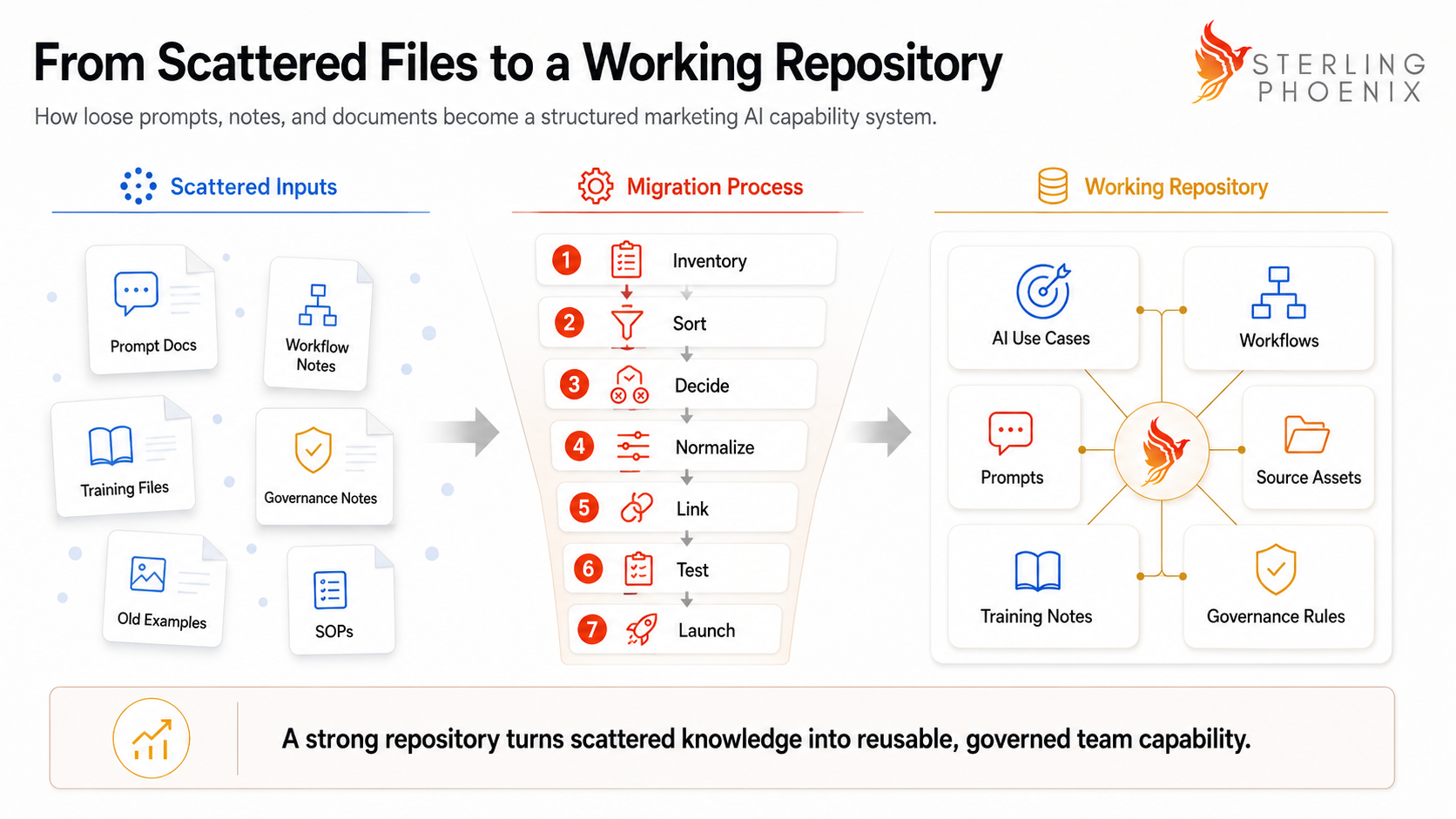
Most teams already have prompt files, workflow notes, and training documents worth keeping. Use this sequence to bring them in cleanly.
Step one: Inventory. Gather the prompt files, workflow notes, training documents, standard operating procedures, examples, and governance notes.
Step two: Sort. Group the assets by function, such as content, campaign operations, sales enablement, reporting, research, and leadership communication.
Step three: Decide. Keep only the assets that support repeated work, carry a clear business use, or can become training material.
Step four: Normalize. Convert each retained asset into the correct database record with its required fields.
Step five: Link. Connect use cases to workflows, workflows to prompts, prompts to source assets, and workflows to training notes.
Step six: Test. Run each workflow or prompt with realistic inputs before you label it approved.
Step seven: Launch. Train the first users and collect feedback before you expand the repository.
Avoid migrating every old prompt. A smaller repository with strong, tested records serves the team better than a large repository full of questionable assets.
Create the First Training Path
After the first workflow is built, create a simple training path. Use three training notes to start.
- Create a note called How to Use the Repository.
- Create a note called How to Run the Weekly GTM Signal Workflow.
- Create a note called How to Review AI-Generated Sales Briefs.
Each training note should follow the same basic structure. It should state what the training helps the user do and when the workflow should be used. It should list the inputs the user needs and the prompt or workflow record to open. It should describe what the output should look like, what the user must review, where the final output should be saved, and whom to contact with questions.
This training path turns the repository into an adoption tool.
Common Mistakes
A few predictable mistakes weaken most repositories. Naming them in advance prevents them.
- Teams build a prompt library without workflows.
- Teams store everything without quality control.
- Teams fail to name owners.
- Teams forget source asset rules.
- Teams treat governance as a document instead of a database.
- Teams build a dashboard nobody uses.
- Teams ignore review dates.
- Teams fail to retire outdated prompts.
- Teams skip training notes.
- Teams leave related records unlinked.
- Teams migrate too much before testing one workflow.
- Teams approve prompts without example outputs.
The last two mistakes matter more than they seem. A repository earns trust through tested workflows rather than through the number of assets it holds.
A 30-Day Build Plan
A first working version is realistic within 30 days. The goal in month one is a usable system, not a complete one.
- In week one, the team inventories existing prompts, workflows, training notes, and source assets, then chooses the first workflow to build.
- In week two, the team creates the six databases, adds the required properties, and connects the databases with relations.
- In week three, the team builds the first workflow asset end to end, including the related use case, workflow, prompt, source assets, governance rule, and training note.
- In week four, the team builds the dashboard, creates the review calendar, trains the first users, and schedules the first repository review.
After the first month, expand slowly. Add the next highest-value workflows only after the first workflow works in real use.
The Strategic Implication
The repository is where the team goes to reuse, improve, govern, and teach what works. It moves AI capability out of private chats and into a shared system.
A strong AI capability repository turns private AI fluency into a system the whole marketing team can trust and improve. That shift is what lets a team keep its gains as people, tools, and campaigns change.
Key Takeaways
- A marketing AI capability repository connects use cases, workflows, prompts, source assets, training notes, governance rules, and review cycles.
- Notion can support the system with six databases, one executive dashboard, and one review calendar.
- Prompts should attach to workflows, owners, required inputs, source assets, examples, and review standards.
- Relations are what turn separate Notion databases into one operating system.
- The first workflow asset should be built and tested before the team migrates everything.
- Review cycles keep the repository current as campaigns, tools, messaging, and team needs change.
- The repository doubles as a portfolio asset because it shows how AI capability can be organized, reused, and governed.
Frequently Asked Questions
What is a marketing AI capability repository? It is a shared operating hub for approved use cases, workflows, prompts, source assets, training notes, governance rules, and review cycles.
Can a marketing AI capability repository be built in Notion? Yes. Notion works well for a first version because it can connect databases, dashboards, documentation, owners, and review dates.
What databases should the repository include? A practical version should include AI Use Cases, Workflows, Prompts, Source Assets, Training Notes, and Governance Rules.
What should I build first? Build the homepage, the six databases, the relation properties, and one complete workflow asset before migrating everything.
How often should the repository be reviewed? Active workflows and high-use prompts need a monthly review. Source assets and governance rules usually need a quarterly review or a review after major business changes.
Who should own the repository? A Marketing AI Operations lead, a marketing operations leader, or an AI enablement owner should own it, with input from workflow owners and reviewers.
Framework Reference: The Marketing AI Capability Repository Blueprint
Definition. The Marketing AI Capability Repository Blueprint is a six-database structure for managing reusable AI capability inside a marketing team.
Core Databases. AI Use Cases, Workflows, Prompts, Source Assets, Training Notes, and Governance Rules.
Operating Layers. Executive Dashboard, Review Calendar, Related Records, Owners, Examples, and Review Cycles.
Application. Teams apply the blueprint by migrating existing AI assets, linking them to workflows and source materials, assigning owners, defining review rules, training users, and maintaining the system through monthly and quarterly review cycles.
References
- Notion. Dashboards view (Help Center, accessed May 2026). https://www.notion.com/help/dashboards
- Notion. Database templates (Help Center, accessed May 2026). https://www.notion.com/help/database-templates